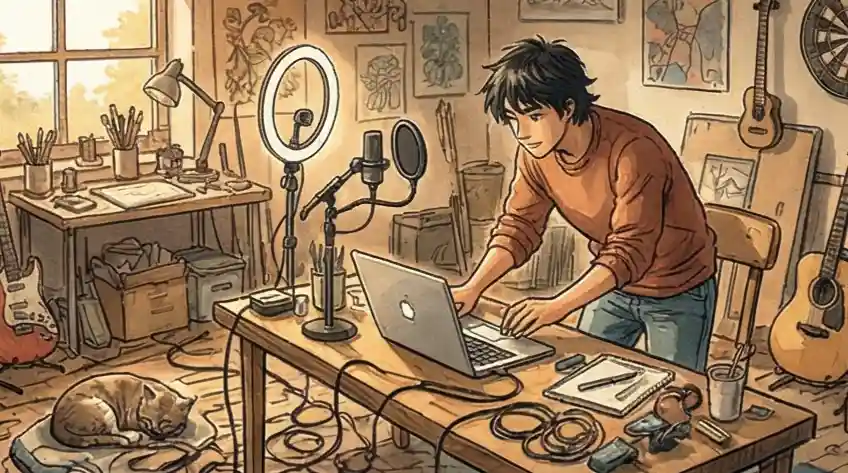
What You Must Remember for Remote Success
"Your setup is the first thing we notice. Clear video and sound tell us you're prepared; blur and echo suggest the opposite." Recruiting lead, tech sector
Put your camera at eye level. This instantly shows you respect the other person and feel confident. Over time, this small physical change makes people see you as an equal leader ready to talk.
Good sound quality is key to sounding believable. If your voice is clear with no background noise, people listen to your ideas, not struggle to hear you. This makes you seem more reliable over time.
Using a wired internet connection shows you are a professional who plans ahead. Always having stable meetings builds trust with coworkers, proving you handle important work without needing constant checking.
Checking Your Digital Appearance
Hiding behind a blurry background is hurting your job chances. Most people try to look invisible by using plain backgrounds and bad lighting to avoid looking awkward. When competition for roles is high, this defensive approach reads as a weakness. It turns you into just another person on the screen, easy to forget.
This creates a Gap in How You Come Across. When your video setup is just okay, it suggests you aren't highly skilled with technology or you don't have strong professional stage presence. Your words lose impact, and the interviewer gets bored. You are not only trying to get a job; you are fighting against the technical problems of video calls themselves.
According to LinkedIn (2024), recruiters spend more time assessing candidates when video and audio are clear. To get an edge, you need to move from just getting through the call to taking charge of the digital space. Your video quality is now your first impression. Make your setup look like a planned broadcast: use careful lighting and clear sound. You immediately show proof of your skills. You stop being just another candidate on a call and start looking like a professional who uses technology to show their authority.
What is a remote interview setup?
A remote interview setup is the combination of camera, microphone, lighting, background, and internet connection you use for video interviews. Getting it right means the interviewer sees and hears you clearly and you come across as prepared and professional.
Your setup is part of your first impression. A clean background, eye-level camera, and stable connection signal that you take the process seriously. Once you have an offer, how to prepare for a background check is another step to handle with care. This section walks you through how to compare options and fix common problems so you look and sound your best on camera.
How to Compare Your Remote Interview Setup
As someone who manages technical products, I look at a remote interview setup like launching a product: I check how much it costs, how hard it is to set up, and how good the "User Experience" (what the interviewer thinks) is. The chart below shows three levels of setups, helping you pick the right gear based on where you are in your career and the job level you want.
Level 1: The Basic Start
Main Parts / What You Get
- Your computer's built-in camera (usually 720p quality)
- Headphones you use for calls that have a small mic
- Natural light from a window
- A plain wall behind you
Why It's Good (Your Advantage)
It Works and It's Clear: This setup makes sure you can be seen and heard without technical problems. It shows you are organized and respect the basic rules of talking online.
Level 2: The Professional
Main Parts / What You Get
- A separate camera that shows 1080p quality
- A dedicated microphone for your voice
- A small light ring for your desk
- A physical wire connection to the internet (Ethernet)
Why It's Good (Your Advantage)
Looks Good and Seems Strong: Better video and clear sound mean the interviewer doesn't have to work hard to listen. When you look and sound sharp, you seem more sure of yourself and technically capable.
Level 3: The Expert Level
Main Parts / What You Get
- A high-end camera (like a DSLR) for a nice, blurry background
- A professional studio microphone (XLR)
- Three soft light sources
- Sound-dampening material for the room
Your Next Step
Impressive Quality: This "broadcast quality" setup makes an instant great impression. It tells people you are a top leader who cares about high-quality communication and professional standards.
How to Choose
Advice
Level 1
Pick this if you are just starting or a student. Your main goal is to have everything work perfectly so they only hear your answers, not focus on your tech.
Level 2
Pick this if you are experienced. This is what most companies expect. It shows you have put effort into your remote workspace and are ready for a long-term remote job.
Level 3
Pick this if you are interviewing for high-level management or design jobs. At this stage, your "appearance" is part of your skill set. Great equipment quietly says you care about high standards.
The Rules for Your Virtual Stage
The Virtual Stage Protocol is a simple, three-step way to make sure you always look professional, sound clear, and are technically stable during all your video calls.
The Look
What People See
How to set up your view so that the interviewer only focuses on you and nothing else.
The Sound
Your Voice Quality
How to make sure your voice is perfectly clear without any distracting noises getting in the way.
The Connection
Staying Stable
How to make sure your internet connection doesn't cause any technical problems during your talk.
Part 1 (The Look) sets the scene, Part 2 (The Sound) ensures you communicate clearly, and Part 3 (The Connection) provides the reliable tech base, giving you a strong and confident online presence all the time.
Quick Fixes for Better Flow
Get rid of the small things that distract people during video calls. Choose specific actions over lazy default settings so your presence stays professional, strong, and clear.
The "Floating Head" Blur: Using digital blur looks cheap, hides your hands, and makes you look like a generic person with weird, broken edges.
The Strong Setup: Turn off the blur. Set up so a neat, plain wall is behind you. Put one bright light source behind the camera so your face stands out from the background.
The "Looking Down" View: Having your laptop on a flat desk makes you look down, which can make the interviewer feel like you are looking down on them.
The Eye-Level Fix: Stack books or use a stand to raise your camera until it is exactly at eye level. This makes you look like an equal partner and helps you sit up straighter.
The "Hollow Sound": Laptop mics pick up noise from the room and echoes, making your voice sound weak, far away, and hard to understand.
The Clear Audio Base: Use a separate USB microphone or wired headset. The closer the mic is to your mouth, the deeper and more "in charge" your voice sounds to the listener.
The Digital Freeze: If you rely on Wi-Fi, you might freeze or have audio delays, which looks bad and makes you seem unsure about technology.
The Wired Fix: Plug your computer directly into your internet box using a cable. If you can't do that, sit in the same room as the box and close every other program and browser tab you aren't using for the interview.
The 60-Minute Check Before the Call
Use this list in the hour before your interview to check all your tech, make sure you look professional, and get totally focused. For a full routine the night before, see our guide on the night before an interview.
Check your internet right away and open the meeting link. Open the program (Zoom, Teams, etc.) to update it and plug your computer into a power outlet.
Clean up anything messy in the view behind you. Make sure you are facing a window or a desk lamp so your face is bright and your background looks professional.
Turn off all alerts on your phone and close every program and browser tab you are not using, so your computer doesn't slow down or show pop-ups.
Record yourself for 10 seconds or use the platform's "test mic" feature. Make sure your voice is sharp with no echo or background sounds.
Start the meeting five minutes before it begins. Use this time to check your posture one last time, look at your camera framing, and wait quietly for the meeting to start. If you are switching into a new field, moving from a non-tech role to a tech company has more tips on how to present yourself.
Improve More with Cruit
To Practice
Interview Practice ToolFix your mental hesitation by practicing your answers with an AI coach using digital cards based on the STAR method.
For Belief in Yourself
Career Advice ToolUse an AI Mentor 24/7 to ask tough questions, find out what you are worth, and build a smart plan.
For How You Talk
Daily Log ToolWrite down your successes every day; the AI pulls out the skills you used, building a strong list of examples for strong answers.
Becoming an Interview Expert
Should I use a blur background in a video interview?
Using a digital blur is better than a messy room, but it often creates weird edges around your hair, which suggests you don't know how to use tech well.
Instead of a blur or a fake office, try to find a spot with a plain wall or a small shelf of books behind you. A real, simple space makes you seem more honest and real than a digital filter can. It shows the interviewer that you are organized and genuine, not just another generic person on a screen.
How do I look at the camera and still see the interviewer?
This is a common problem that causes the "Gap in How You Come Across."
To fix this, make your meeting window smaller and move it to the top of your screen, right under your camera lens. This lets you look at the camera for "eye contact" while still seeing the interviewer's face in your side view. Putting your camera at eye level, instead of looking down at your laptop, instantly changes the power balance to feel more equal.
Headset or laptop mic for a remote interview?
If you want to sound like a leader, avoid big gaming headsets or the weak mics built into laptops.
A separate external microphone (even a basic USB one) gives your voice "depth" and clarity, making you sound more like a manager and less like a student. If you have to use headphones, pick small, simple ones. This keeps your "Look" clean and makes sure the focus stays on your face and what you are saying, not on your equipment.
Is wired internet better than Wi-Fi for video interviews?
Yes. A cable from your computer to your router is more stable than Wi-Fi and reduces the chance of freezing or audio dropouts.
If you can't use a cable, sit close to your router and close other apps and browser tabs so your connection has enough bandwidth. Test your setup at least 30 minutes before the call.
When should I test my setup before the interview?
At least one hour before the call. Check your internet, camera, and mic, and join a test meeting if the platform allows it.
Use the last 5 minutes before start time to join the real meeting early, do a final check of your framing and posture, and wait calmly. That way you avoid last-minute tech surprises.
Stop Being Forgotten.
Don't settle for being just another person on a screen with blurry, weak video. When you accept an average setup, you signal that you aren't that serious, and you become forgettable. To beat the competition and get the job, you must treat your video quality as proof of your skills. Set up your "Power Frame" with good lighting, eye-level camera, and clear sound so you prove you can run a digital meeting as well as a real one. Don't just show up for the call; take control of the broadcast. Go into your next interview not as someone asking for a chance, but as an important professional ready to guide the team.
Take Control Now